Tag Archives: artists

How to Draw An Eye – Step by Step ( Comic Style )

In this tutorial you will learn how to draw a comic style eye step by step. Be sure to practice this often but also to experiment with each stage of this process. You will find your style by experimenting with variations of shapes and rendering so just have fun with it!

In this drawing exercise I will be using a 2H lead on Bristol board smooth paper but you can follow along with whatever art supplies you prefer. Remember to start loose and get some sketches going to warm yourself up.

Step 1 – Drawing the Basic Shape of the Eye
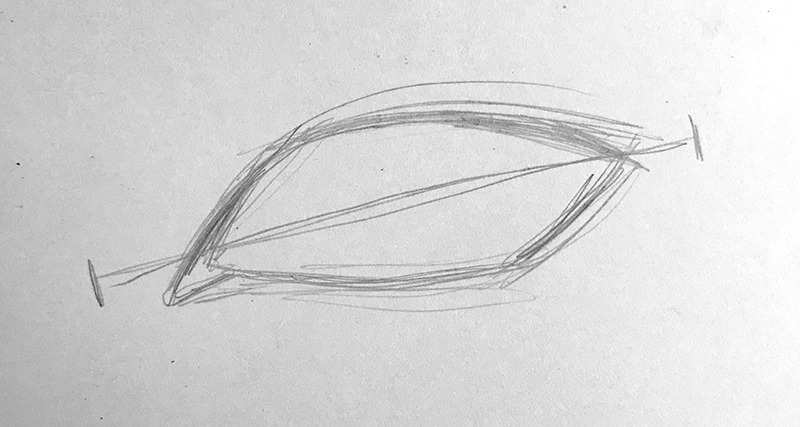
Step 1 - Drawing the Basic Shape of the Eye
Drawing Comic Art Style Eye Tutorial

For this first step I like to focus on the overall shape of the eye as well as the angle from the tear duct to the opposite side where the eye lids meet. I tend to notice an upward tilt and by establishing that early on, it becomes easier to consistently draw them.

This is an excellent time to play with various differences in the shape of the eye. Practice making the shapes more narrow, more rounded, more pointed to one side, and so on. You can create all sort of fun variations for your comic book character types!

Step 2 – Drawing the Iris and the Pupil
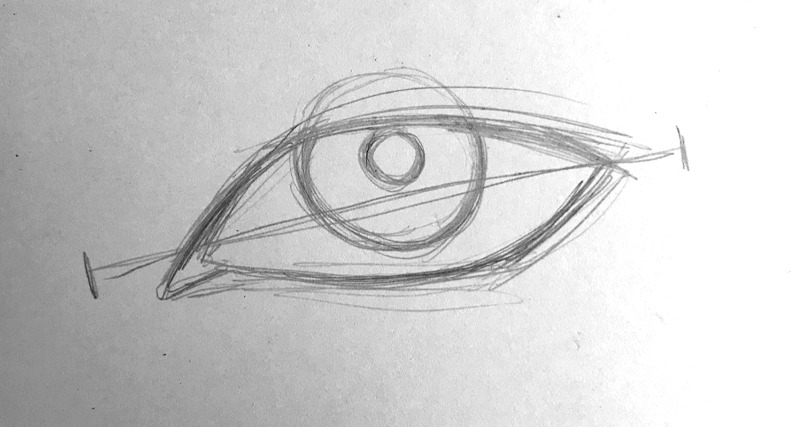
Step 2 - Drawing the Iris and the Pupil
Step 2 – Drawing the Iris and the Pupil

For the second step, draw in the iris and the pupil. A good rule of thumb is that the iris is about one third the distance across of the eye. To be honest I experiment with this proportion as well. Sometimes to really push the expression of fear or excitement I will purposely make the iris smaller by comparison. It’s comics so we can get away with it I promise.

Also notice that the iris is touching the top eye lid. This gives a more relaxed look to the eye. Subtle differences in the position of the iris and pupil can change the expression of the character so keep an eye on it!

Step 3 – Drawing the Shape of the Eyelid
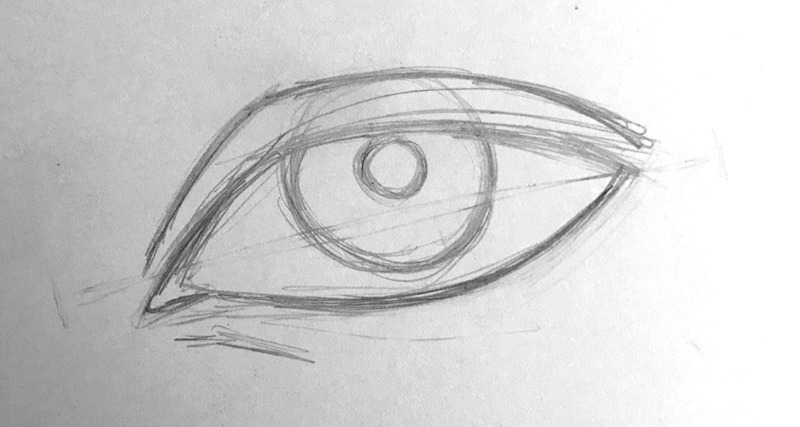
Step 3 - Drawing the Shape of the Eyelid
Step 3 – Drawing the Shape of the Eyelid

In this third step, draw the shape of the eyelid. This can pretty much follow the existing edges but I like to taper it a bit taller as it moves around the rounded or middle part of the eye. We have to try to envision the spherical form of the eye ball beneath the skin. Again, play around with this area within your work to find what suits your style the best.

Step 4 – Drawing the Shape of the Eye Lashes
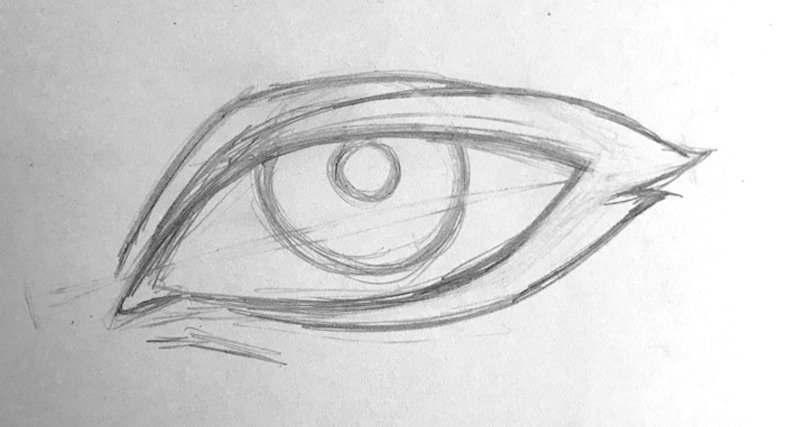
Step 4 - Drawing the Shape of the Eye Lashes
Step 4 – Drawing the Shape of the Eye Lashes

In this fourth step, I like to draw the eye lashes as large basic shapes. This helps me to simplify the process a bit and it makes a lot of sense for comics especially when you are drawing your smaller faces within a scene. Individual eye lashes are great for close ups but that’s about it. Besides you can always add those in as you will see shortly.

I think it goes without saying but this is another on of those times where you can really experiment with a variety of shapes. I will be honest and tell you I didn’t like the look of this stage of the work but I knew I could save it so I pressed forward. Some times you just have to keep fiddling with it and not give up!

Step 5 – Drawing in the Shape of the Eyebrow
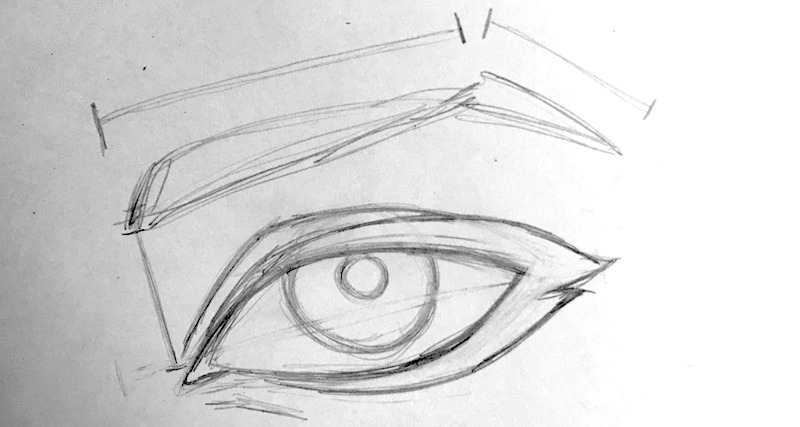
Step 5 - Drawing in the Shape of the Eyebrow
Step 5 – Drawing in the Shape of the Eyebrow

In this fifth step, draw in the shape of the eyebrow with some basic angles in mind. I like to imagine the plane changes of the characters forehead when doing this. I also feel that by keeping this step as simple as possible I can lay in the ground work for the details later. If I start by trying to draw in a bunch of little hairs I tend to end up with a mess. No one likes messy eyebrows!

Step 6 – Drawing the Glare and Shadow
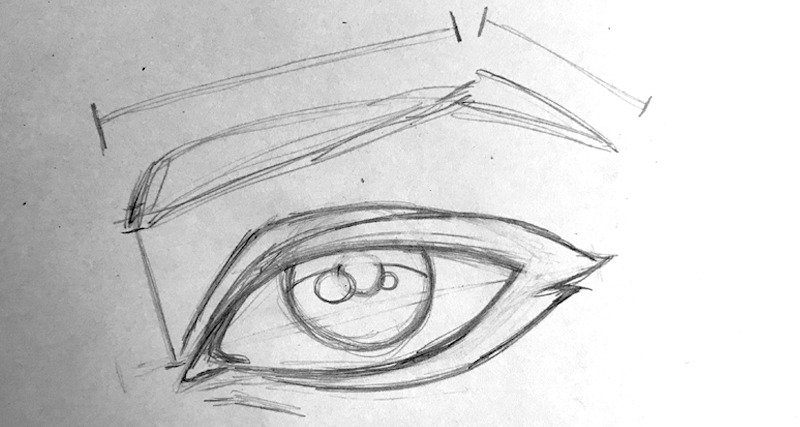
Step 6 - Drawing the Glare and Shadow to the Eye
Step 6 – Drawing the Glare and Shadow to the Eye

In this step we will draw the glare and the shadow on the iris. Draw the shadow over the iris as a curve. This helps to push the look that the eye is a sphere and not a flat object. Then draw in the glare on the highest point of the eye, usually right by the pupil. This is another chance to play around with style choices but then again, you already knew that didn’t you?

Step 7 – Draw in the Shadows and Add Some Eye Lashes
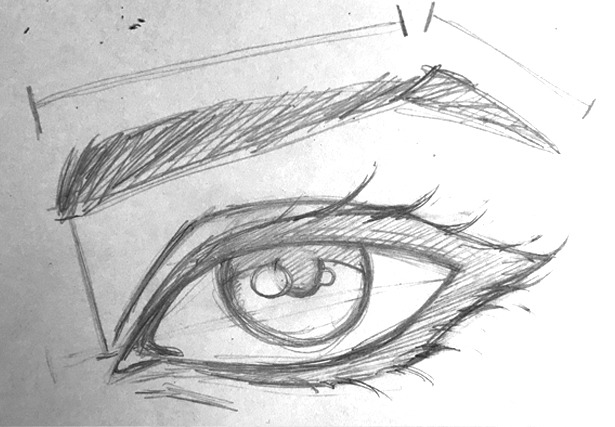
Step 7 - Draw in the Shadows and the Eye Lashes
Step 7 – Draw in the Shadows and the Eye Lashes

In this step we can fill in the shadows and add some eye lashes. I tend to change the shape of the eye lashes as I do this. Sometimes I will erase back the perimeter shape so that I can try different effects with the eye lashes. I like paying attention to other comic artists and how they define this area of their work. One of my favorites to study for eyes is the late Michael Turner (RIP). His work is breath taking and the way he rendered eyes was nothing short of AMAZING!

Step 8 – The Final Rendering
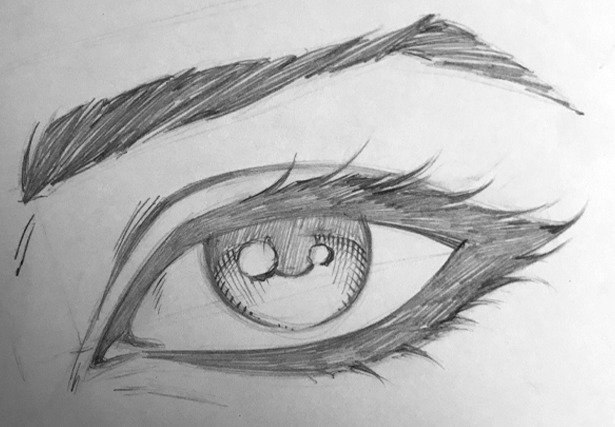
Step 8 - The Final Rendering
Step 8 – The Final Rendering

In this final step, soft eraser all those rough lines and clean it up. I like to push and pull the lines here. Some need a little more curve and some need a little less. I also like to add in a bit of cross hatching to the eyes to create a look of tonal value. And, that’s it. You can take these same steps and apply them to all sorts of eye variations.

For some more examples you can head over to our Artist Resources and Templates page here – https://staging.ramstudioscomics.com/index.php/art-resources-templates/

I hope you found this drawing tutorial to be helpful and if you did please share the content with your fellow artists. More on the way soon and good luck with your art!

Sincerely,

Robert A. Marzullo

Ram Studios Comics
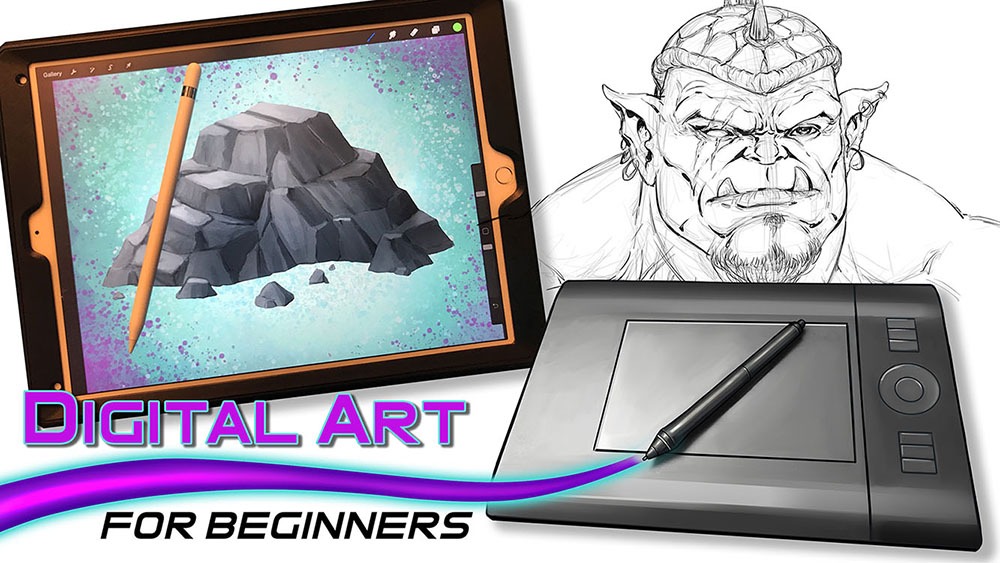
Digital art for Beginners – unleash your creativity

Digital Art for Beginners

Hello Artists!

I have just released my course, “Digital Art for Beginners.” This is something I have been working on for some time. If you follow my work then you already know most of everything I create these days is done with digital tools and programs. I have been working with digital software for over 20 years and drawing tablets for over a decade. So I felt it was time to share everything that I know about Digital Art production.

This course is designed to help you break into the world of Digital Art by giving you the information that I had to search for or learn by trial and error. It is my goal to save you time and alleviate any frustration you might incur while making the jump.

Learning to create with Digital Art Tools can seem frustrating at first but you have to realize that there are so many neat ways to edit your work that you can still be productive while developing your skills. The main thing is to keep an open mind and keep creating!

In this course you will learn about some of my favorite art programs that I have used for many years to create my style of art. We will cover Sketchbook Pro, Clip Studio Paint, the Procreate app, Adobe Photoshop, and Krita. You will learn about the tools that each of them have adopted from one another over the years as well as the ones that make them unique.

In the next section of this course we will cover 3 types of drawing devices. The Wacom Intuos 4 Medium Tablet, the Wacom Cintiq 22HD, and the iPad Pro 12.9 / Apple Pencil. This will give you a good range of what is available to you as a Digital Artist.

Then we will jump into using these tools to produce 2 different art projects. This will allow you to see how I use these to create my Digital Art on a daily basis. I will explain my Drawing and Painting process and how I use the tools to make edits. The main focus here is to get you to feel more comfortable with these tools. Many artists experience a feeling of disconnect and that is entirely natural when trying something new. You will overcome it with patience and practice. I assure you and I am speaking from experience!

Watch the Introduction Video to this Course here –

I am here to help you. If you take this course and have any questions please send me an email through my website form. I will help you as quickly as possible. If you have any ideas for new lessons that will make this a better learning experience for everyone, then I will be more than happy to add them to this course!

This course is currently 4 Hours long + Art Files and Brushes

Get Lifetime assess to this course here on my Gumroad – https://gum.co/eAnSS

or Watch it here on Skillshare –

https://skl.sh/2Ik1PnV

Thank you for considering my content and good luck with your Digital Art! 🙂

-Robert

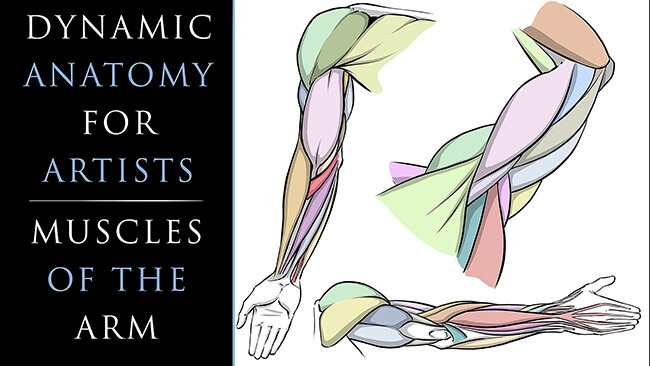
Dynamic Anatomy for Artists – Drawing the Muscles of the Arm

As artists and especially as comic artists we have to have a good understanding of human anatomy. It is not an easy task but it is definitely worth the effort. You can immediately tell when an artist spends time doing their studies of the human body. From gesture and figure drawing to countless illustrations of the complex muscles and their relationships, nothing about it is simple but it truly transforms your art into something to be desired.

I avoided these studies for far too long in my own career. Even after hearing criticism from professional artists and editors that I admired. We have all been there or will hear it at some point, “You need to work on your anatomy! It is never fun to hear a comment like that but it is the cold hard truth. If you want to be a great character artist, you need to study anatomy.

So let’s stop avoiding what we know we need to learn. I created these lessons to help simplify the anatomy and make the drawing process easier to accomplish. In this first class we will focus upon the Arm Anatomy. Here is the class introduction to let you know what you can expect to gain from it –

Welcome to my class, “Dynamic Anatomy for Artists – Drawing the Muscles of Arm.”

Dynamic Anatomy of the Arm for Artists

I am extremely excited to bring you these lessons on drawing the muscles.  Learning anatomy isn’t easy but it will vastly improve your ability to draw impressive character designs and comic book superheroes.

What You Will Learn in This Class – 

  • How to Draw the Muscles
  • Basic Terminology
  • Visual Patterns
  • Form + Volume
  • Stylizing the Work
  • Efficient Ways to Improve

This class is designed to simplify the process of drawing the arm anatomy.  I will teach you the basic forms that I use to draw the arm from memory and you will get access to all the art files to study along with.  Including diagrams with all the terminology.

Don’t beat yourself up though!  Just try to improve a little each day and commit a muscle or two to memory here and there.  Consistency is the most effective way to improve in my opinion.  Rome wasn’t built in a day, right?! 😉

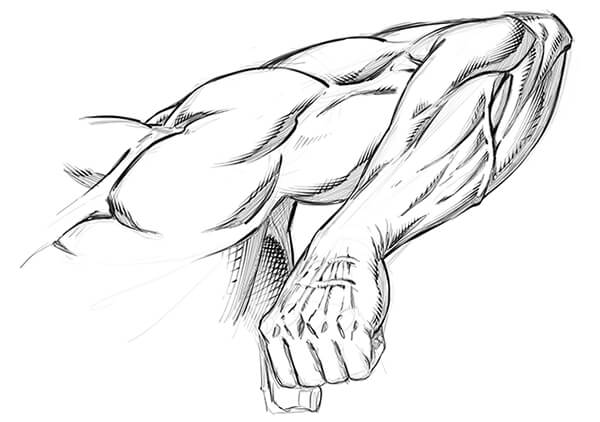
Dynamic Arm Anatomy Drawing

After you work through the anatomy breakdowns I will show you how to implement this into a few examples. We will work on these to help you transition your new skills into your own stylized version.

Signup for this class here on Skillshare – https://skl.sh/2REAuCA

or

Get the Lessons Here on Gumroad – https://gum.co/pXUkR

I am here if you have any questions and remember you can send your artwork for me to review by using my contact form here on the website. You can also submit your artwork as a project file on Skillshare as well. Next we will be covering Leg Anatomy so I hope you will join me for that class as well! 🙂

Sincerely,

Robert A. Marzullo

Ram Studios Comics
www.staging.ramstudioscomics.com


Custom Brushes by RAM – Clip Studio Paint / Manga Studio 5

Are you a fan of custom brushes for Clip Studio Paint? I know I am! They save a ton of time and can really open up some new ideas when utilizing them. If nothing else, they are just plain fun to use!

I have been creating brushes for years now. I started in Photoshop about 15 years ago but quickly feel in love with Clip Studio Paint’s brush engine. It is the absolute best on the market so far. Not only does it have a supperior use and control of the “Ribbon Effect” it also supports full color brushes. As well as controling the two primary colors with the Foreground and Background swatches. Super effective in my opinion!

I have two primary sets for Clip Studio Paint / Manga Studio 5. They are the “RAM – Manga Studio 5 / Clip Studio Paint – Inking Set” and “Clip Studio Paint – Manga Studio 5 – Digital Painting Brush Pack.” I started by creating Inking Brushes for Comics. Then I realized that I could create all sorts of time saving effects. Brick patters, cross-hatching, hair and fur, power effects, and the list goes on.

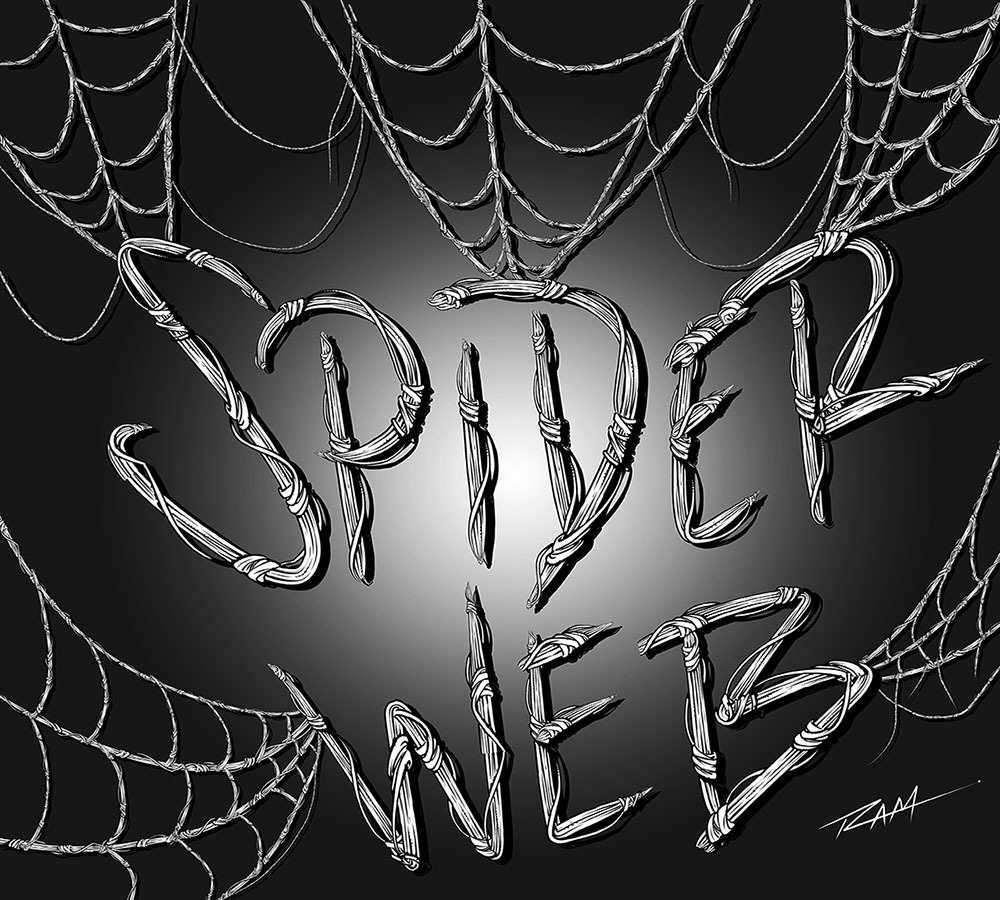
The new brushes that I just added are focused on repetitive patterns or “Ribbon Effects”. Things like Chain Links but with a comic style line art applied to them. Or my latest brush… Spider-Webs! I draw Spider-man a lot so with will save me years of webbing! 🙂

Spider-Web Brush by RAM

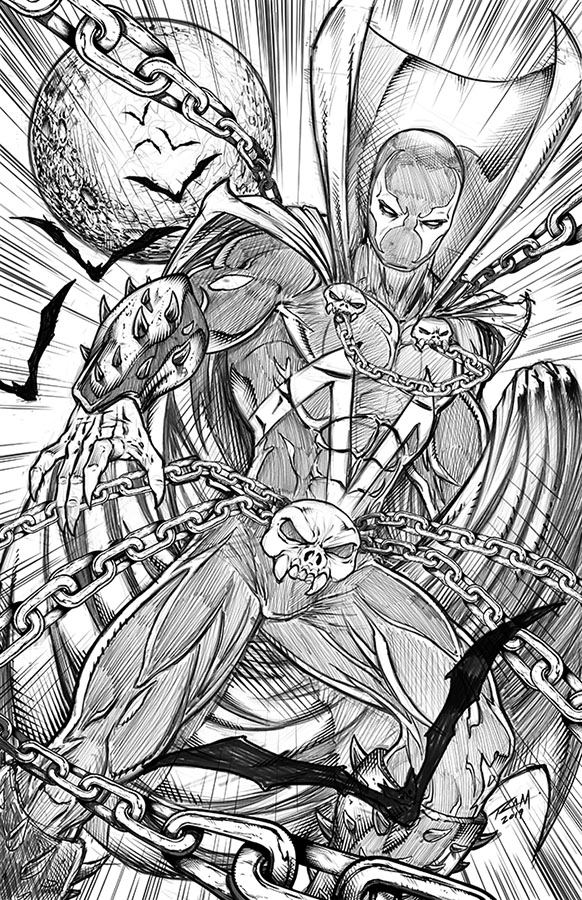
Here is an image of Spawn that I drew in the Procreate app and then added my custom Chains Brush in Clip Studio Paint.

Spawn Comic Art by Robert A. Marzullo ( Character is Property of Todd McFarlane. )

So hopefully you can see how these brushes can be very useful as well as huge time savers. This is just how I use them so feel free to experient with your own creative illustrations!

Get the Inking Set here – https://gum.co/gGIye

or

Get the Painting Set here – https://gum.co/TQPbf

Both include the new brushes and more Comic Art Style brushes will be added as soon as I create them. Feel free to let me know which brushes you need and I would love to see the art you create with them!

Thanks for stopping by and best of luck with your art journey!

Robert A. Marzullo Ram Studios Comics
Drawing Amazing Backgrounds with Perspective – Step by Step

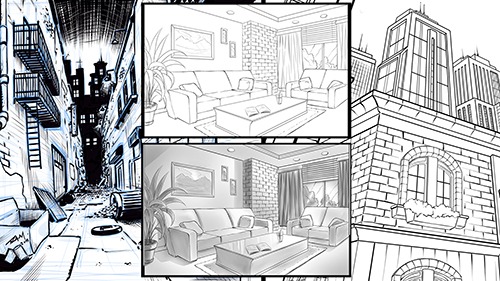
Welcome to my next online Course, “Drawing Amazing Backgrounds with Perspective – Step by Step.”  This course will teach you how to use 1, 2, and 3 Point Perspective to create interesting and imaginative backgrounds.  You will work with me as we draw an illustration for each example.   This will allow you to learn not only how to use these powerful techniques but also how to create environments from imagination.  

Drawing Amazing Backgrounds with Perspective

You will learn a variety of techniques to create shapes with dimension through these lessons.  Such as cubes, pyramids, archways, and angles.  By the end of this course, you will have a better understanding of how to draw rooms, buildings, brick walls, windows, furniture, and all with Linear Perspective!

Things we will be Focusing on in this Course

  • Creative Design Thinking
  • Expressive Line Making
  • Depth + Scale within Our Scenes
  • Mapping Out Space in Perspective
  • Adding Values for Portfolio or Client Work
  • Correcting Flaws within the Work

This course is designed to teach you how to draw detailed backgrounds step by step.  You will be drawing an alleyway with one-point perspective, an interior room with two point-perspective, and a view looking up at various buildings using three-point perspective.  These will each be created with a different style to give you the most versatile experience possible.  It is important that you not only learn how to draw with perspective but also how to create a variety of styles with these techniques.  I want my students to be able to relate this information to comics, storyboards, and animation.  If you learn to be versatile as an illustrator you have a much greater chance of success.  This is what I have experienced in my career and I want to share that with you!  Drawing background with Linear Perspective is an extremely important asset to have as an artist.  So let’s get started right now and put Perspective Art in your toolbox!

Get Lifetime access to this Full 7 Hour Course here for $10 – https://gum.co/KzRWK

I am here if you have any questions and I value your feedback!

-Robert 

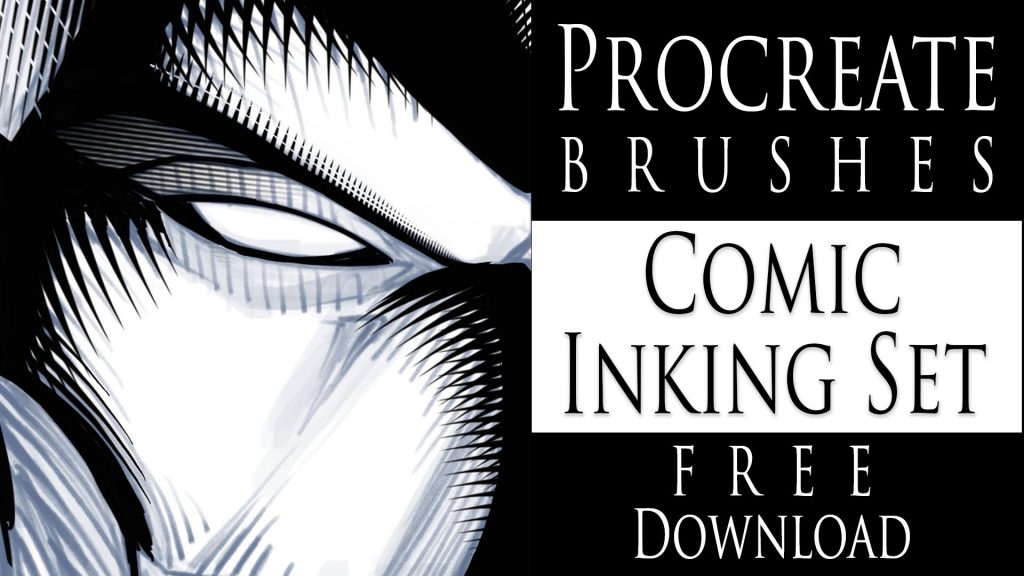
Procreate Brushes – Comic Inking Set – Free Download

Procreate Brushes - Comic Style Shading - Free Download
Procreate Brushes – Comic Style Shading – Free Download

Hello Everyone!

I am excited to share some new brushes with you today! I have been playing around with some comic style inking brushes for the app Procreate.  I was able to come up with a few cross-hatching brushes that I think you might find helpful within your work.

I’ve noticed that a lot of artists struggle to get good effects with their cross-hatching. Almost to the point where they decide not to do much of it. This is where these brushes can help. They are designed to make that part much easier to accomplish. Keep in mind this shouldn’t deter you from drawing out your own, only to aid you in getting better at the process. These brushes look much better if they are correctly mixed with hand drawn shading.  They also help to save time in certain areas of the work. Deadlines have to be met at any cost, right!

I have been using Procreate for a few years now and I really enjoy the brush creation process in this app. It is easy to do and the brush settings are extremely versatile. I will be making more of these brushes to add to this pack. There are all sorts of neat things to create for comics. Background textures, brick patterns, various brush tips, and so on.

NEW PROCREATE BRUSHES ADDED TO THIS SET!

UPDATED! Just to let you know I added 16 NEW custom Procreate brushes to this set on 5-11-2021.  They included some more cross hatching brushes, background texture effects, and a couple of quick clip art brushes.  I have more ideas to create so be sure to check back often!

If you want these brushes head over to my Gumroad and get them here – https://gum.co/JYdba  

This is a Pay What You Want item! So if you want them for FREE just type 0 during checkout and they are yours. You will also get any updates to this pack for free as well.

__________________________________________________________________

If you want to learn How to Create Digital Art with Procreate please check out my full course here. This is my discount code – View here

Procreate Like a Pro: Create Awesome Digital Art on an iPad

In this course, I explain all the tools and features within Procreate. You also learn my process on using this app to create my digital art everyday. I now create 90% of all my illustration work with my iPad Pro and Procreate!

Thanks for stopping by and let me know if you have any questions for me. Feel free to email me through my contact form.

Yours Truly,

-Rob

Update on How to Draw Dynamic Superheroes – Start to Finish!

How to Draw Dynamic Superheroes Start to Finish

How to Draw Dynamic Superheroes – Start to Finish!

Hello Fellow Comic Artists!

I have been working on some new content to add to my existing Udemy course,  How to Draw Dynamic Superheroes – Start to Finish!”

I have just included over 5 Hours of new content in this course.  Putting it at over 9 Hours long with 28 NEW lessons.  In this section, I show you how to draw, ink, and color a fully detailed comic book scene or cover piece.  This helps to implement all of the previous lessons taught throughout the course.  Which should help to commit the important parts to your memory!

Here is a breakdown of what the current curriculum looks like :

Section 1 – Basic Proportions of the Superhero Male

Section 2 – The Superhero Female

Section 3 – Drawing the Muscle Bound Brutes

Section 4 – Drawing Dynamic Superhero Poses

Section 5 – Drawing Characters with Perspective and Foreshortening

Section 6 – Creating a Comic Book Scene – Superhero Flying Towards Camera

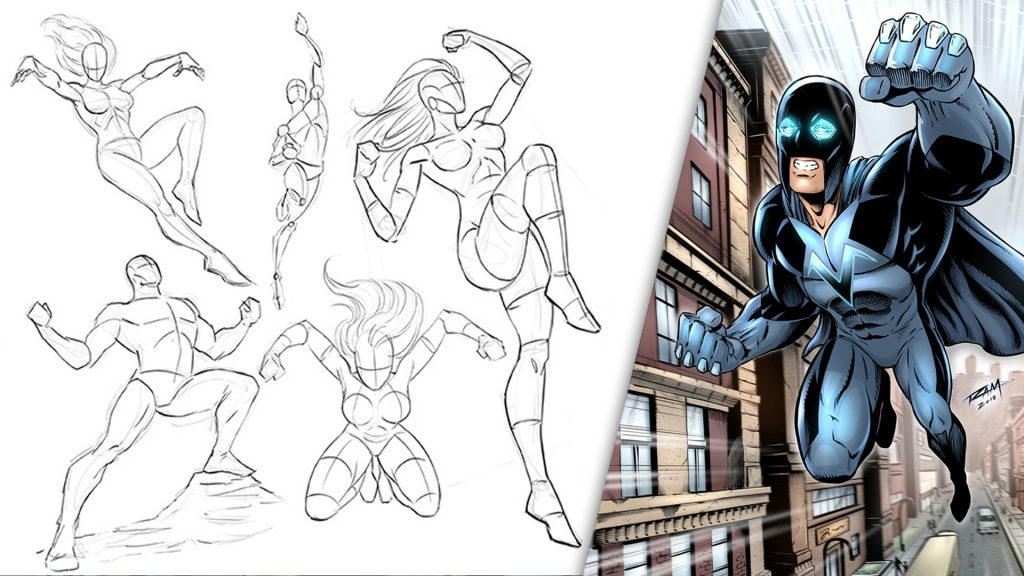
In this course you will learn how to sketch poses, refine the sketch, measure and adjust proportions, create suit designs, render various materials, create shapes of shadows, draw bodies in perspective, use thumbnails to save time, create dynamic poses, draw a cityscape in perspective, ink the work, apply colors and add final touches!

By the end of this course, I have no doubt you will have a lot better understanding of what it takes to create comic book artwork like the pros! You also get all the art files to study along with.

If you have any questions about this content you are welcome to leave your questions in the Q+A Section.  I will answer you back as soon as I can.  I am also open to any feedback you have for me to improve the quality of this course for everyone! I will continue to add lessons as needed and you will get all additional updates for free.

Here is my Udemy Discount Code to get the Lowest Price on this course – https://www.udemy.com/how-to-draw-dynamic-comic-book-superheroes-start-to-finish/?couponCode=RAMSTUDIOSCOMICS

Here is the Promo Video for this course –

Thank you for checking out this course and good luck with your art! More videos are on the way soon! 🙂

Robert A. Marzullo

Ram Studios Comics


Drawing Comic Style Art in Procreate – On the iPad Pro

Venom Comic Art by RAM

Hello Everyone!

I hope all is well on your side of this crazy rock. I am having fun drawing some new fan art and I wanted to share a few things I have learned while doing so.  For those of you that don’t know my process let me explain.  I have been drawing comic art for over 20 years now and I used to work on good old bristol board but a few years back I decided to start working digitally. ( I was a messy inker! :>)  I know people are rolling their eyes right now.  Real artists use traditional tools, right?  I get it, you’re in love with the feeling of real paper.  I don’t blame you, I draw on paper as much as I can too.  Something about it just feels…..you know…natural!  I switched because I am a big fan of technology and I like to be on the forefront  of it all.  Plus, I really just wanted to ink digitally but then later realized the pencils were possible as well.  By creating all of it digitally I was saving a lot of time.  I no longer had to scan my pages which was always a pain.  I know a lot of artists just don’t want to make the switch.  I truly don’t blame you, to each their own I guess!

So when I started drawing digitally I bounced around to a few different drawing softwares.  I quickly realized Manga Studio 4 could create full comic books as a single document and gravitated over to that.  I was a little less than enticed about the drawing process on there.  I was still using an  Wacom Intuos 3 at the time so that was a bit of a hinderance as well.  I hadn’t fully gotten used to drawing on a “lap tablet” as I like to call them.  Then I switched to Sketchbook Pro for the pencils and it started to feel more natural.  Once I finally upgraded to a Wacom Cintiq 22, I was like a kid in a candy store!  I finally had a really nice drawing experience going on.  I could pencil and ink all on this device and with the two programs I felt like I was really getting somewhere.

With each new update the programs have gotten better and better. ( For the most part. ) I still didn’t feel like I was creating to the level that I could achieve on paper though.  Keep in mind, there is a learning curve with any and everything, so part of it could have been that.  I truly believe you can create amazing art with anything if you put your mind and heart into it!

Almost two years ago I started hearing people talk about the new iPad Pro coming out.  I was a bit skeptical at first.  Maybe good for amateurs but I am a pro and I need a big fat Cintiq on my table.  ( By pro I mean a starving artist of course. lol )  Upon seeing other artists work on this device I was quickly sold.  I loved the fluid marks they were making.  I also thought the Apple Pencil looked more comfortable to work with.  Plus I really wanted to be portable with my art creation process.  After taking the leap of faith I was quickly at home using the device.  It was very intuitive and I was creating the style of art I like rather quickly.

The only issues I had was not being able to use all my favorite programs.  I felt a bit stuck.  I really enjoy the feel of the device but was missing some great apps to take advantage of it.  I even used Astropad for a short time to help bridge the gap but it didn’t fit well into my workflow.  I then started using Procreate more and more.  Within a few updates this app was really starting to appeal to me.  Plus, it records videos and I am such a Youtube junkie these days! 🙂

You can check out my channel here by the way – http://www.youtube.com/c/robertmarzullo

The Procreate app is extremely well designed.  It moves quickly and the interfaces is so streamline you will forget it is there.  The brush engine is nothing short of amazing and it has the most natural drawing experience I have found thus far.  The Venom art above was drawn in this app.  About 90 percent of my work is done there now.  I still jump over to my Cintiq when I need dual monitors and have to get some multi-tasking done but I quickly jump back over to my iPad Pro and Procreate combo to knock out some sketches or comic art.

So I just want everyone that reads this to know that the iPad Pro and Procreate is a VERY solid solution to creating professional art on the move.  Great battery life and stable as can be!  I am here if you have any questions I can help with and if you want to learn more about how I use these two together you can check out my Udemy course here – https://www.udemy.com/procreate-like-a-pro-create-awesome-digital-art-on-an-ipad/?couponCode=RAMCOMICSPOST101

Good luck with your art and thanks for your support! 🙂

Robert A. Marzullo

Ram Studios Comics
 

Why It’s Important to Thumbnail the Artwork First

Spider-man and Spider-Gwen

I often get into a bad habit of drawing whatever comes to mind.  I mean to say, when I start an image I don’t always know exactly where I want it to end up.  When I see myself do this too many times I get back to the basics to fix it.  That is when I go back to drawing thumbnails like a good little artist should! 😉

Thumbnailing  helps you to know where the artwork should end up. It is a way to establish a set of ideas without wasting a huge amount of time.  Another way to say it is just “rough sketching” but I think thumbnails are the preferred terminology in comics.

You can work out things like poses, composition, camera angles, movement, energy of the shot, and shapes of shadows.  In my opinion, you want to get as much information about the end result as you can within about 2-5 minutes of sketching.  This also sparks creativity immensely!

After rough sketching about 5 thumbnails I am usually pretty set to go on my drawing but hey at 2 minutes long no big deal if you need to create a few more, right?

If you want to see a video of this drawing from the thumbnail sketch to the finished pencils  you can watch it here on my Youtube channel –

Let me know what you think of it and as always, Keep Drawing and Keep Having Fun! 🙂

Robert A. Marzullo

Ram Studios Comics


Procreate Like a Pro: Create Awesome Digital Art on an iPad – Udemy

Procreate Like a Pro: Create Awesome Digital Art on an iPad

Procreate Like a Pro: Create Awesome Digital Art on an iPad

In this course you will learn about the app in two fundamental ways. You will watch me explain the interface while demonstrating the hand gestures that are used to complete various tasks. You will learn how to import and export images, flip the canvas, share the  work in various formats, export video, setup the perspective tools, and adjust the interface to your preference.

Want to Learn How to Draw on an iPad?

In the next section I will take you through a complete illustration from start to finish. This will allow you to see and work through the process of creating the illustration and commit it to memory. You will learn about the brushes, layers, blending modes, lock transparency, selection tools, color adjustments, and general tips and tricks on painting various effects with texture.

By the end of this course you will have created a fun and informative art project. I would love to see what come up with and I would be happy to give you any feedback I can. Just share the work in the Q+A Section when you are done!

Get this course here  – https://www.udemy.com/procreate-like-a-pro-create-awesome-digital-art-on-an-ipad/?couponCode=RAMSTDIOSCOMICS101

Promo Video –

Robert A. Marzullo

Ram Studios Comics