Tag Archives: apple pencil

What screen protector do I use for drawing on the iPad Pro?

Hello fellow Digital Artists!

Choosing the Right Screen Protector for Drawing on Your iPad Pro can be tricky and there are a few things to consider. The main things are protection from damage, a better surface to draw or paint on, and protection for your eyes. We will primarily focus on the drawing aspect today.

So you have an iPad Pro and Apple Pencil and you’re not digging the slick screen right? Been there and done that and I want to share what I have learned with you.

Now before we get started, please keep in mind that we all have different needs so this will not apply to everyone the same. Hopefully my experience will save a few of you from timely and frustrating mistakes. Ultimately it may take some trial and error to find what works for your specific needs.

First let me explain what I have used in the past and what the Pros and Cons have been. I purchased the first Genenteration iPad Pro and Apple Pencil 2015 version. ( Look for the big home button on your device before making your purchase! ) It still works great by the way. I started drawing on the screen and although it didn’t feel natural it was still amazing to work on. I knew from working on the Intuos tablets that digital art just isn’t exactly the same and it takes time to adjust to any new device.

After a while I started to look for the screen protectors that would also give me a more natural drawing experience and save it from any accidental damage of course. I did a ton of research online and landed on the Tech Armor Antiglare protector. You can view it here on Amazon – https://amzn.to/3kGpwI3

Tech Armor Antiglare is my 2nd Favorite Choice!

The Tech Armor Antiglare Protector is still my number 2 on the list. It slows down the Apple Pencil slide and softens up the feeling of the hard glass screen. For me that was a big game changer. I was finally able to draw on the iPad Pro more naturally and stay in the moment of creating the art that I love to create. Comics baby! 🙂

Over time, many new screen protentors hit the market and a lot of them boast things like – Paper Like, the feeling of Paper, etc. I didn’t worry too much about it but as mine started to age I began to look around. I wanted to try one of the Paper Like products and here is the one that caught my eye based upon the reviews – https://amzn.to/2IIBWSA

Paper-Like…More like Sand Paper-Like!

I actually enjoyed this for all of about 2 days. It started to get very annoying very quickly. Not only does your 2 finger pinch and zoom not work as well, you can start to see an effect on the Apple Pencil nib. ( Not cheap to replace those little guys! ). So I started to think the Paper-Like feeling just wasn’t worth it. Besides it really is too coarse in my opinion. More like a fine grit sand paper. So I ripped it off and went back to my Tech Armor.

I still felt like I needed try something else. Don’t get me wrong the Tech Armor antiglare is nice but it stills has a bit too much slide for me. So I decided to keep trying. I then tried the iCarez Antiglare protector. You can view it here on Amazon – https://amzn.to/38PEZTE
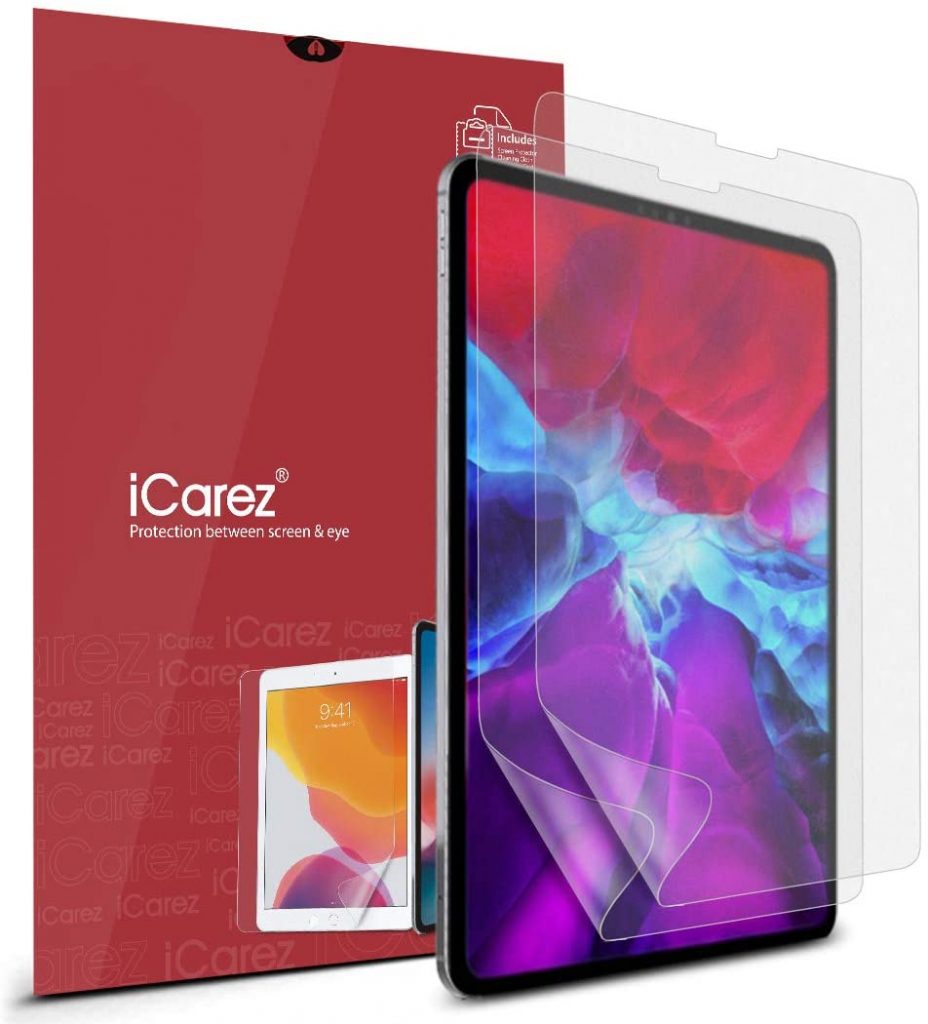
iCarez Antiglare Screen Protector

Not only did I like this one more but it was also cheaper. It slows down the Apple Pencil a bit more but without the sand paper like feeling. I have been using this one for weeks now and it doesn’t negatively impact the nibs either. I am back to drawing on my device and not getting distracted about sliding around on the slick screen and that keeps me creating, which I love!

Keep in mind that all of these protectors will knock back the clarity of the screen. That isn’t as big of a deal for me since I typically only draw comic art but your needs may vary. To me its minimal on the Tech-Armor and the iCarez but be sure to read the reviews about what applies to your type of work. Another tip is to find someone who creates a similar style to yours and find what works for them.

Keeping the Surface Clean is a Must!

You also want to be aware of your own skin oils. Sounds gross right? Your hand is going to leave oils on the screen protector so clean it with a microfiber and sometimes with a small amount of water and or light cleaner. Nothing too aggressive so it doesn’t destroy the finish. By keeping the oils off the screen protector you will retain the optimal feeling for drawing. Just my two cents of course, you may prefer an oily screen…I don’t know you very well. lol

Remember, we all have different levels of sensitivity and needs when drawing and painting. So do your research and you may need to try one or two options before landing on your preferred choice. It is worth it when you find what you looking for since eliminating those irritations will keep you in the creative moment.

Good luck to you and thank you for stopping by! 😉

Robert A. Marzullo

Ram Studios Comics

For more art tips check out my Youtube channel here – http://www.youtube.com/c/robertmarzullo
Digital art for Beginners – unleash your creativity

Digital Art for Beginners

Hello Artists!

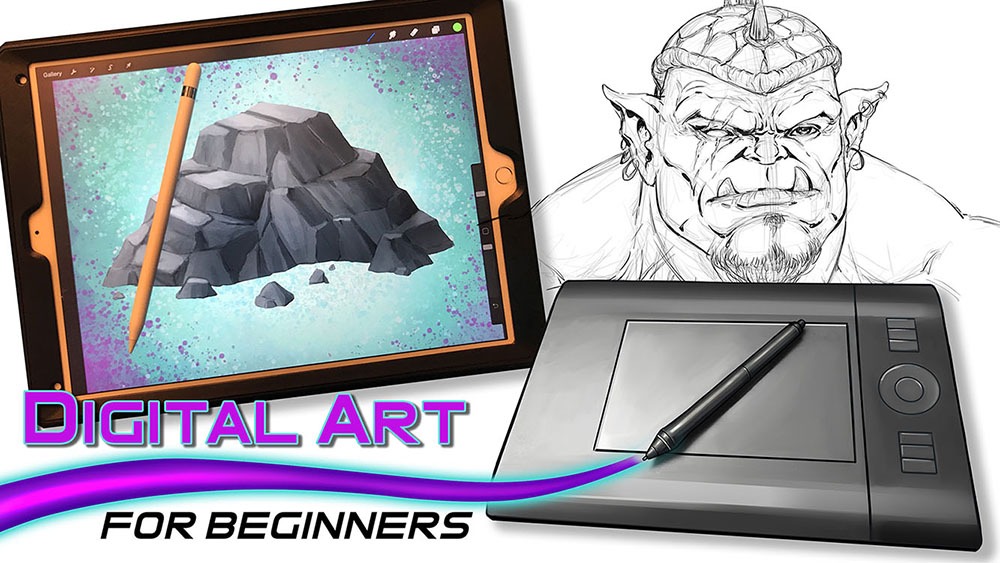
I have just released my course, “Digital Art for Beginners.” This is something I have been working on for some time. If you follow my work then you already know most of everything I create these days is done with digital tools and programs. I have been working with digital software for over 20 years and drawing tablets for over a decade. So I felt it was time to share everything that I know about Digital Art production.

This course is designed to help you break into the world of Digital Art by giving you the information that I had to search for or learn by trial and error. It is my goal to save you time and alleviate any frustration you might incur while making the jump.

Learning to create with Digital Art Tools can seem frustrating at first but you have to realize that there are so many neat ways to edit your work that you can still be productive while developing your skills. The main thing is to keep an open mind and keep creating!

In this course you will learn about some of my favorite art programs that I have used for many years to create my style of art. We will cover Sketchbook Pro, Clip Studio Paint, the Procreate app, Adobe Photoshop, and Krita. You will learn about the tools that each of them have adopted from one another over the years as well as the ones that make them unique.

In the next section of this course we will cover 3 types of drawing devices. The Wacom Intuos 4 Medium Tablet, the Wacom Cintiq 22HD, and the iPad Pro 12.9 / Apple Pencil. This will give you a good range of what is available to you as a Digital Artist.

Then we will jump into using these tools to produce 2 different art projects. This will allow you to see how I use these to create my Digital Art on a daily basis. I will explain my Drawing and Painting process and how I use the tools to make edits. The main focus here is to get you to feel more comfortable with these tools. Many artists experience a feeling of disconnect and that is entirely natural when trying something new. You will overcome it with patience and practice. I assure you and I am speaking from experience!

Watch the Introduction Video to this Course here –

I am here to help you. If you take this course and have any questions please send me an email through my website form. I will help you as quickly as possible. If you have any ideas for new lessons that will make this a better learning experience for everyone, then I will be more than happy to add them to this course!

This course is currently 4 Hours long + Art Files and Brushes

Get Lifetime assess to this course here on my Gumroad – https://gum.co/eAnSS

or Watch it here on Skillshare –

https://skl.sh/2Ik1PnV

Thank you for considering my content and good luck with your Digital Art! 🙂

-Robert

Drawing Comic Style Art in Procreate – On the iPad Pro

Venom Comic Art by RAM

Hello Everyone!

I hope all is well on your side of this crazy rock. I am having fun drawing some new fan art and I wanted to share a few things I have learned while doing so.  For those of you that don’t know my process let me explain.  I have been drawing comic art for over 20 years now and I used to work on good old bristol board but a few years back I decided to start working digitally. ( I was a messy inker! :>)  I know people are rolling their eyes right now.  Real artists use traditional tools, right?  I get it, you’re in love with the feeling of real paper.  I don’t blame you, I draw on paper as much as I can too.  Something about it just feels…..you know…natural!  I switched because I am a big fan of technology and I like to be on the forefront  of it all.  Plus, I really just wanted to ink digitally but then later realized the pencils were possible as well.  By creating all of it digitally I was saving a lot of time.  I no longer had to scan my pages which was always a pain.  I know a lot of artists just don’t want to make the switch.  I truly don’t blame you, to each their own I guess!

So when I started drawing digitally I bounced around to a few different drawing softwares.  I quickly realized Manga Studio 4 could create full comic books as a single document and gravitated over to that.  I was a little less than enticed about the drawing process on there.  I was still using an  Wacom Intuos 3 at the time so that was a bit of a hinderance as well.  I hadn’t fully gotten used to drawing on a “lap tablet” as I like to call them.  Then I switched to Sketchbook Pro for the pencils and it started to feel more natural.  Once I finally upgraded to a Wacom Cintiq 22, I was like a kid in a candy store!  I finally had a really nice drawing experience going on.  I could pencil and ink all on this device and with the two programs I felt like I was really getting somewhere.

With each new update the programs have gotten better and better. ( For the most part. ) I still didn’t feel like I was creating to the level that I could achieve on paper though.  Keep in mind, there is a learning curve with any and everything, so part of it could have been that.  I truly believe you can create amazing art with anything if you put your mind and heart into it!

Almost two years ago I started hearing people talk about the new iPad Pro coming out.  I was a bit skeptical at first.  Maybe good for amateurs but I am a pro and I need a big fat Cintiq on my table.  ( By pro I mean a starving artist of course. lol )  Upon seeing other artists work on this device I was quickly sold.  I loved the fluid marks they were making.  I also thought the Apple Pencil looked more comfortable to work with.  Plus I really wanted to be portable with my art creation process.  After taking the leap of faith I was quickly at home using the device.  It was very intuitive and I was creating the style of art I like rather quickly.

The only issues I had was not being able to use all my favorite programs.  I felt a bit stuck.  I really enjoy the feel of the device but was missing some great apps to take advantage of it.  I even used Astropad for a short time to help bridge the gap but it didn’t fit well into my workflow.  I then started using Procreate more and more.  Within a few updates this app was really starting to appeal to me.  Plus, it records videos and I am such a Youtube junkie these days! 🙂

You can check out my channel here by the way – http://www.youtube.com/c/robertmarzullo

The Procreate app is extremely well designed.  It moves quickly and the interfaces is so streamline you will forget it is there.  The brush engine is nothing short of amazing and it has the most natural drawing experience I have found thus far.  The Venom art above was drawn in this app.  About 90 percent of my work is done there now.  I still jump over to my Cintiq when I need dual monitors and have to get some multi-tasking done but I quickly jump back over to my iPad Pro and Procreate combo to knock out some sketches or comic art.

So I just want everyone that reads this to know that the iPad Pro and Procreate is a VERY solid solution to creating professional art on the move.  Great battery life and stable as can be!  I am here if you have any questions I can help with and if you want to learn more about how I use these two together you can check out my Udemy course here – https://www.udemy.com/procreate-like-a-pro-create-awesome-digital-art-on-an-ipad/?couponCode=RAMCOMICSPOST101

Good luck with your art and thanks for your support! 🙂

Robert A. Marzullo

Ram Studios Comics


Procreate Like a Pro: Create Awesome Digital Art on an iPad – Udemy

Procreate Like a Pro: Create Awesome Digital Art on an iPad

Procreate Like a Pro: Create Awesome Digital Art on an iPad

In this course you will learn about the app in two fundamental ways. You will watch me explain the interface while demonstrating the hand gestures that are used to complete various tasks. You will learn how to import and export images, flip the canvas, share the  work in various formats, export video, setup the perspective tools, and adjust the interface to your preference.

Want to Learn How to Draw on an iPad?

In the next section I will take you through a complete illustration from start to finish. This will allow you to see and work through the process of creating the illustration and commit it to memory. You will learn about the brushes, layers, blending modes, lock transparency, selection tools, color adjustments, and general tips and tricks on painting various effects with texture.

By the end of this course you will have created a fun and informative art project. I would love to see what come up with and I would be happy to give you any feedback I can. Just share the work in the Q+A Section when you are done!

Get this course here  – https://www.udemy.com/procreate-like-a-pro-create-awesome-digital-art-on-an-ipad/?couponCode=RAMSTDIOSCOMICS101

Promo Video –

Robert A. Marzullo

Ram Studios Comics